Help
Can I save my conversation with Cody?
Sure can. Just create an account and then log in. All your conversations with Cody are automatically saved when you are logged in.
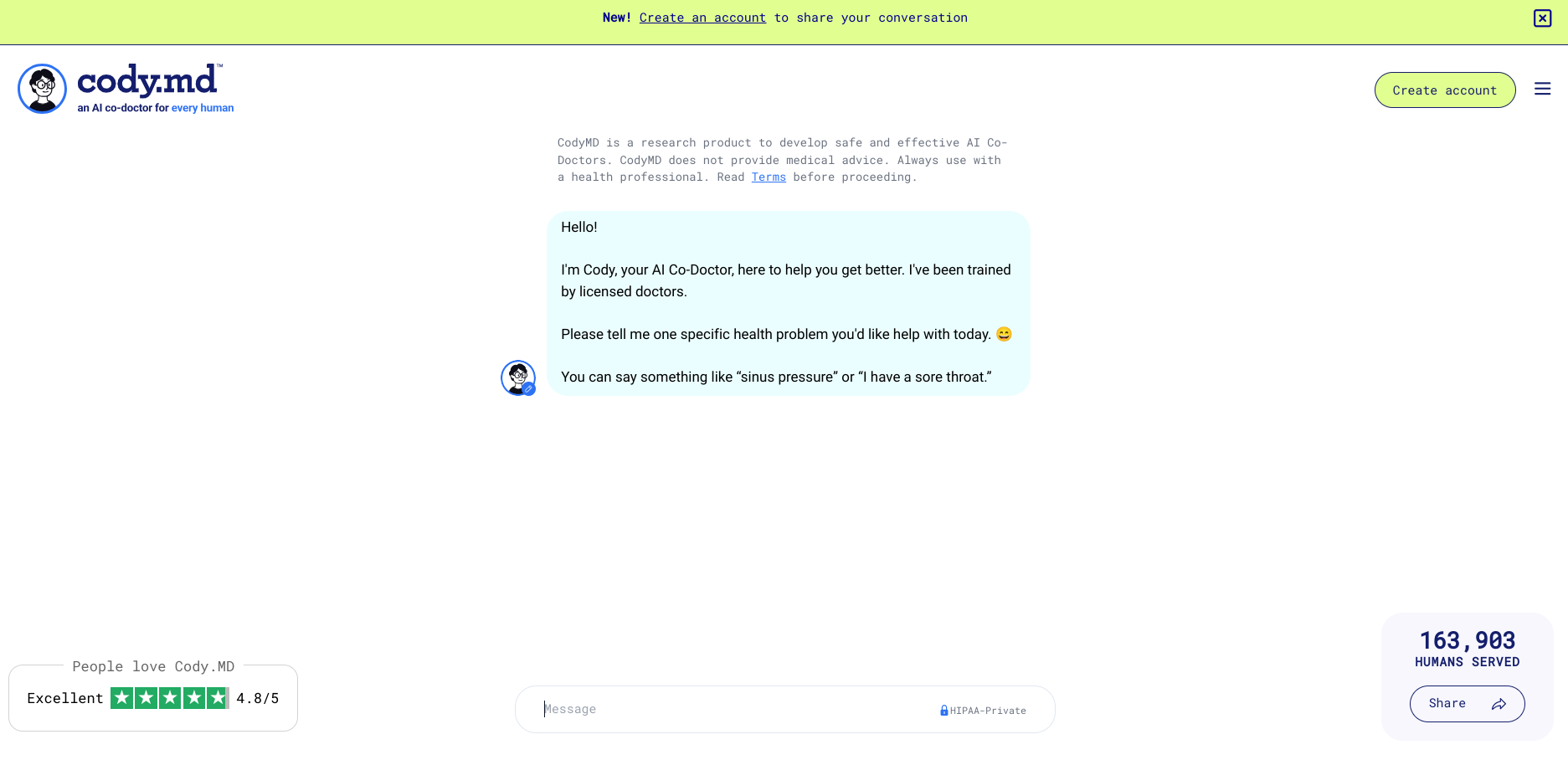
Here's how your Cody screen on a desktop looks when you are logged out.
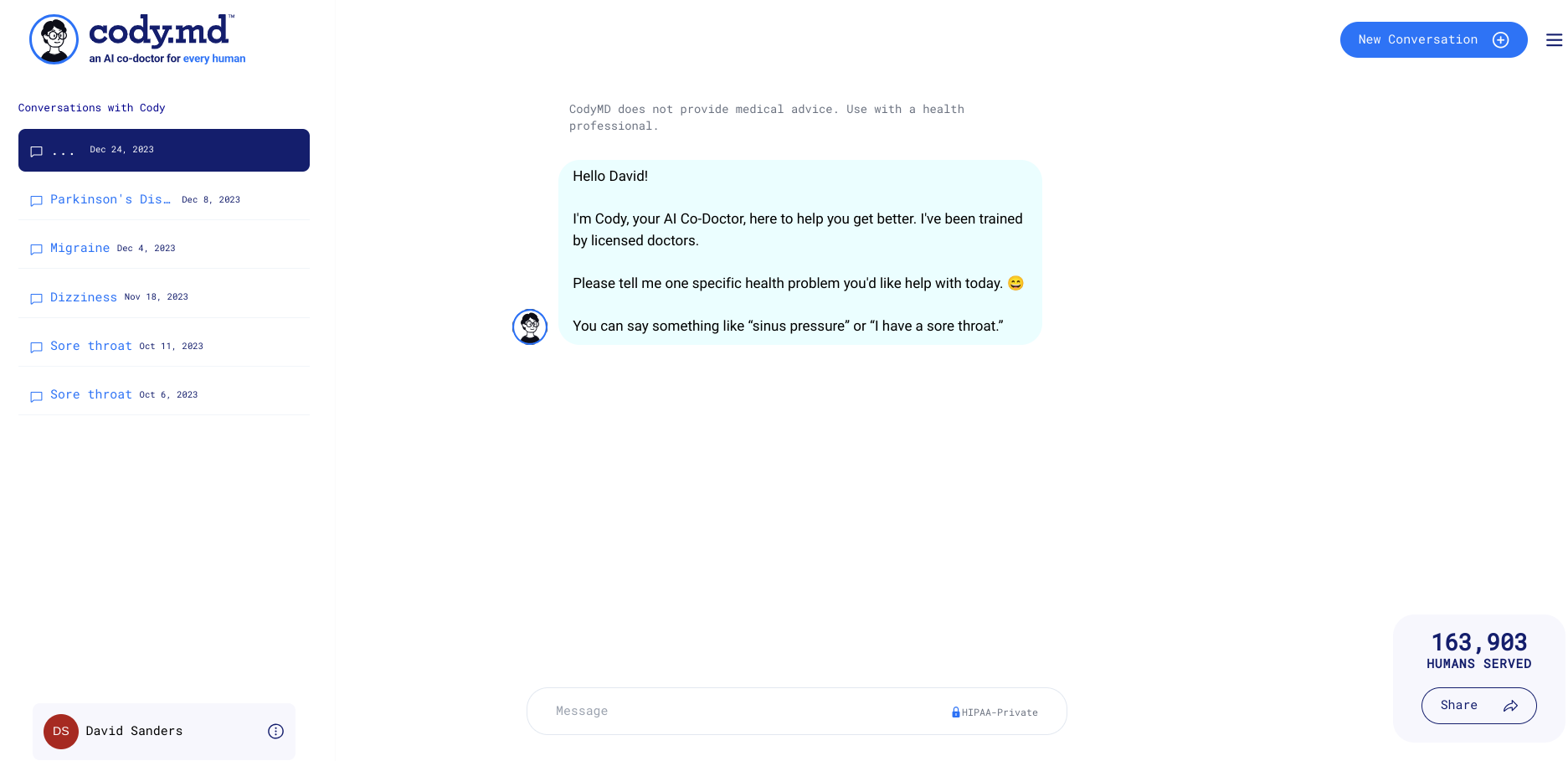
When you log in, you see this.
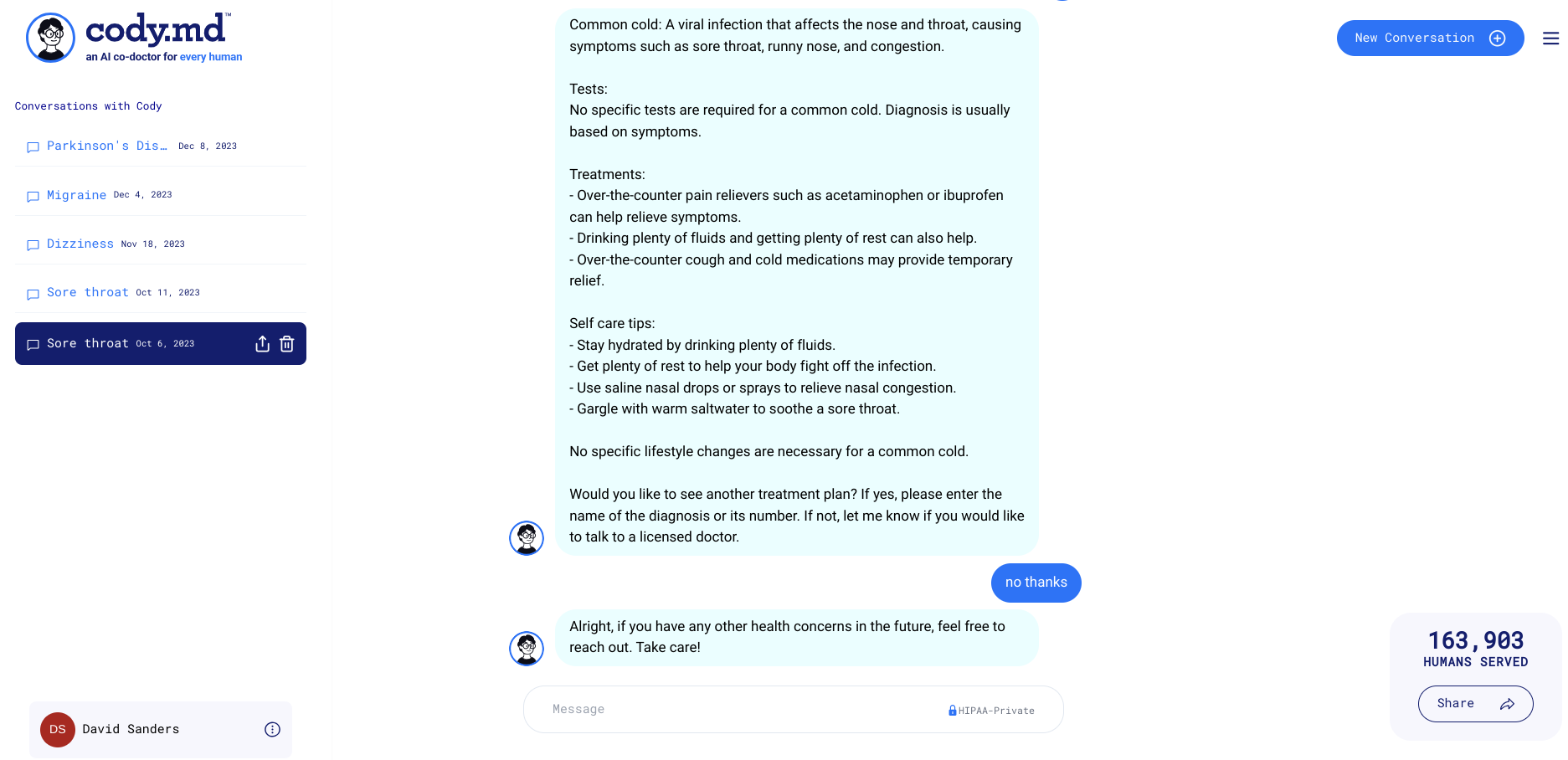
Notice in the left margin the section "Conversations with Cody". This is where Cody saves your conversations with Cody.
Just Select the conversation you want to review and the full conversation will be presented to you.
You can always remove your conservation, too.
Just tap on any conversation. It will turn dark blue and reveal the trash can icon. Just select the trash can icon.
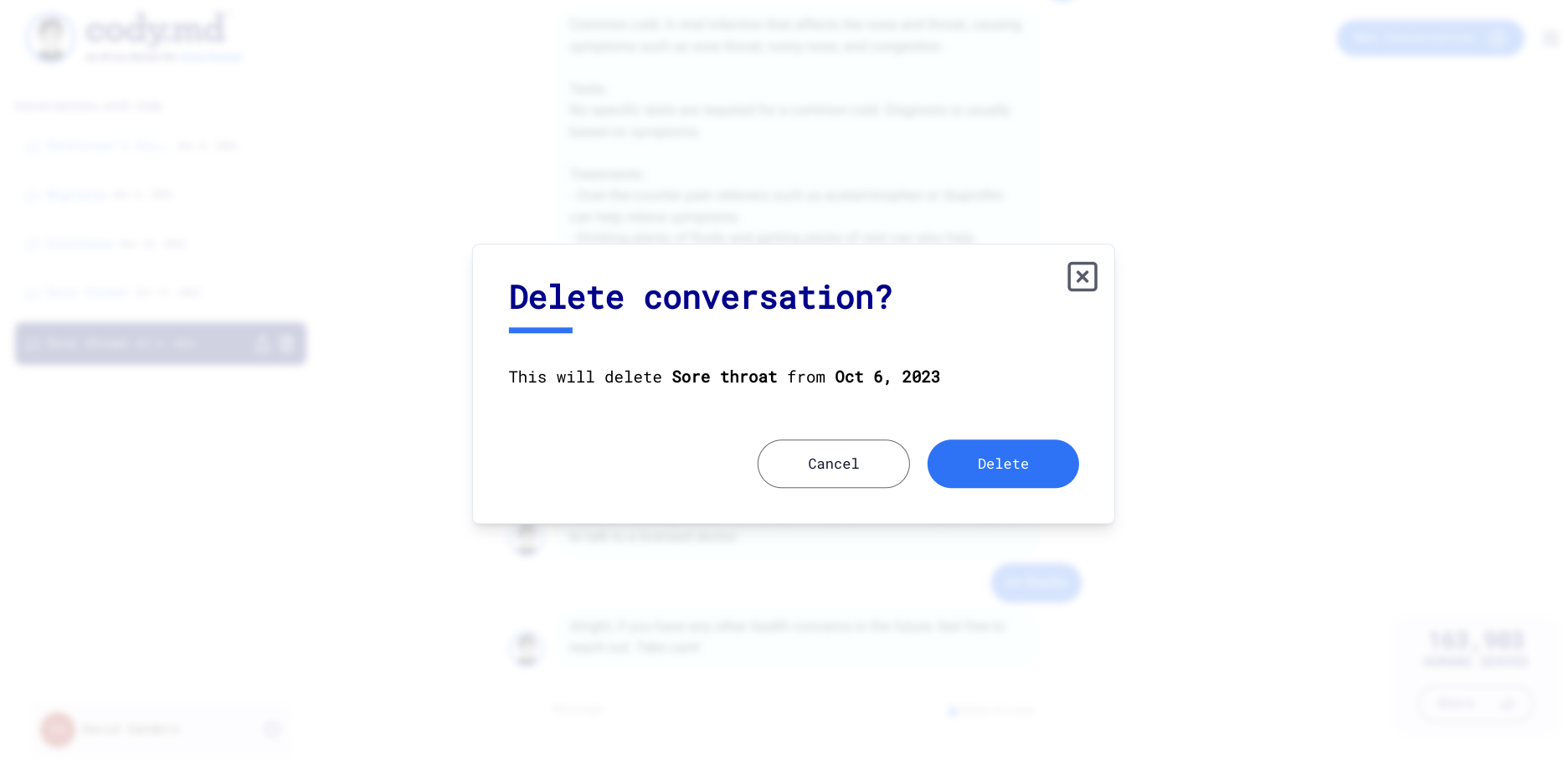
Then you'll be prompted to confirm. Confirm if you wish to remove the conversation from your saved conversations.
That's how you save conversations, viewed saved conversations, and then remove them.
Can I remove conversations that have been saved?
Yes. Next to each conversation is a trash icon. Just tap the trash icon to remove your saved conversation.
How do I create an account?
Simple, just tap the Create Account button.
You can create an account and instantly log in using your Google or Facebook account or with your email address.
Is my information private with CodyMD?
Yes! CodyMD is founded and owned by doctors who understand personal health information privacy. Your information is maintained in privacy, and of course, is never shared or sold.
What languages does Cody speak?
I speak many languages. Just chat with me in your preferred language. If I speak your language, I’ll respond back in your preferred language. If not, I’ll continue to chat with you in English.
How do I securely share a conversation?
-
Create an account or log in
-
Locate the conversation you want to share.

- Select the “share icon”.
-
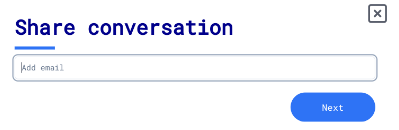
Enter the email of your recipient and select “Next”.
-
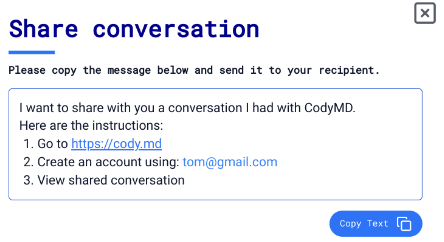
Follow instructions on the next screen. Copy the message on the screen and send it to your recipient.
-
All done. Now your recipient has secure access to your conversation.
-
You can revoke access anytime. Follow these steps.
-
Locate the conversation.
- Select the “share” icon.
-
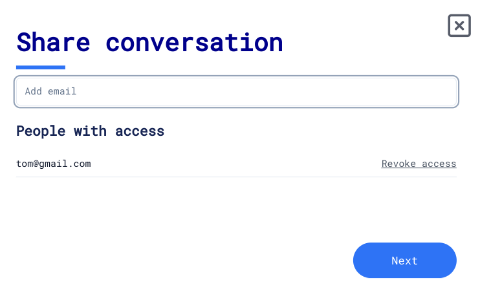
See “People with access”. Find the relevant recipient - the person with access.
-
Select “Revoke Access”.
-
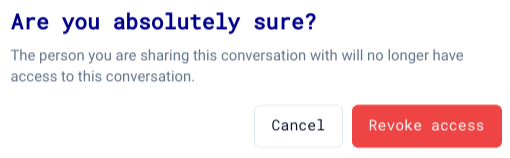
Confirm.
-
The recipient will no longer have access.
How do I choose Cody’s avatar?
You can choose Cody’s avatar and change the avatar as often as you like. Here’s the step-by-step:
-
Create an account or log in.
-
Select the pencil icon on Cody’s avatar.

- The Cody avatar options will unfurl.
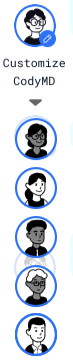
- Select your preferred Cody avatar.

- That’s it. Change anytime.
How do I delete my account and all associated data?
You can delete your account directly from the app:
- Log in to CodyMD with the account you want to delete.
- Go to My Chart and scroll down to the Delete Account section.
- Select Delete account.
- Enter the reason you're deleting your account (required).
- Select Delete account again to confirm.
Your account and all associated data will be deleted immediately, and you will be signed out.
Note: Account deletion is permanent and cannot be undone.
How to Cancel Your Paid Membership Plan (Smart Plan)
Watch this this 60 second video to learn how to cancel your CodyMD Paid Membership Plan (Smart Plan.)
Step 1. Log in to CodyMD using the same email you used to create your paid plan. Step 2: Select Navigation Menu (the 3 bars in the upper right) Step 3: Select "Cody Membership" Step 4: Select "Cancel Subscription" Step 5: Select "Cancel Subscription" again to confirm
That's it. We'll miss you, but hope you'll consider Cody again.